Clients
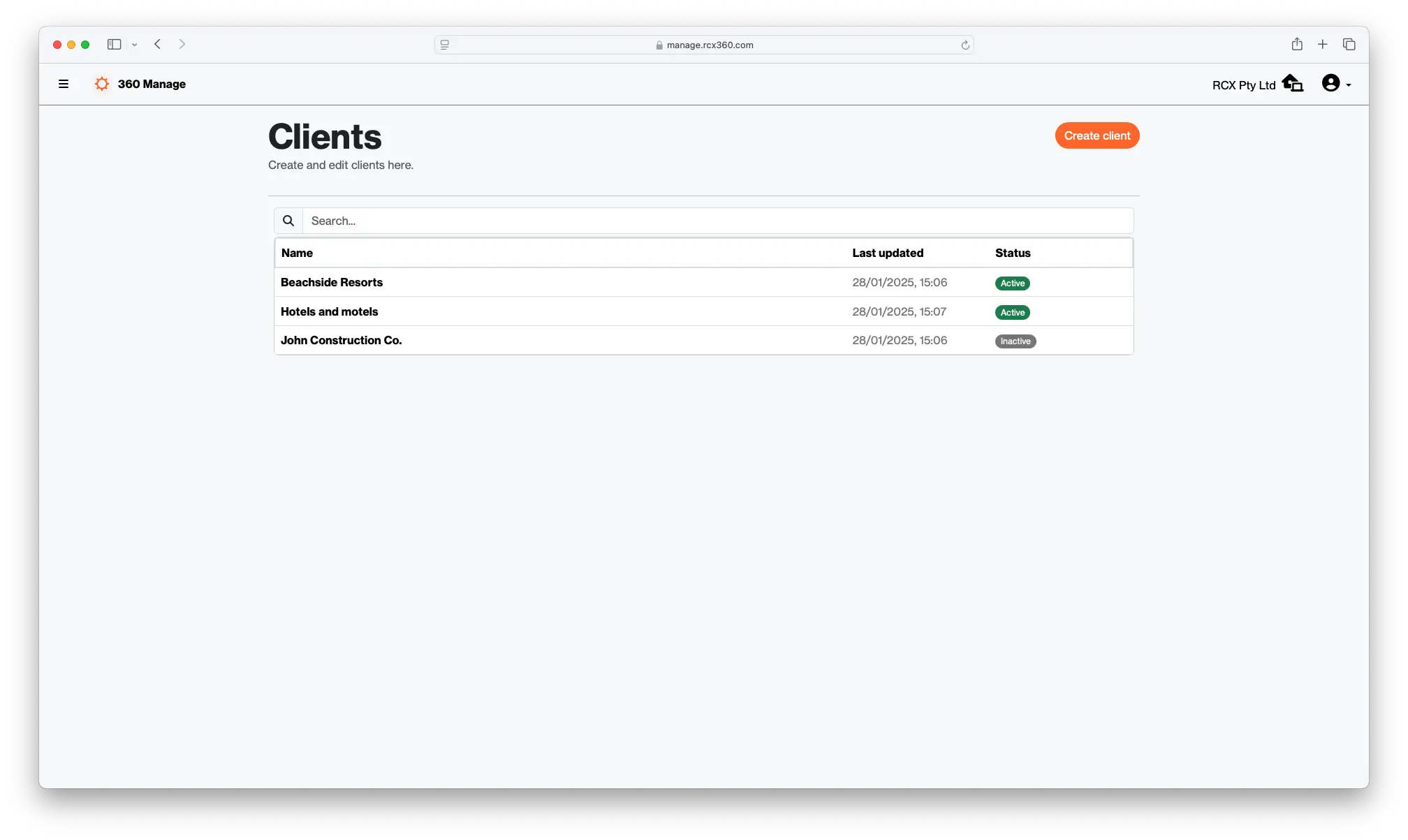
Projects can be assigned to a client. A client is essentially a container that holds similar projects together, and allows for easier assignment management.
By assigning a user to a client, this allows a user to see ALL projects that are assigned to the client.
Clients are optional; a project can be found even if it isn't assigned to a client. But it might make finding projects and views just that little bit easier.
A client consists of the following:
- A name
- A collection of assigned projects
- A collection of assigned users
Creating a new client
After accessing the list of clients from the dashboard or sidebar, click "Create" to get started. During the creation process, add a name and select any project or user you wish to assign to the client.
Assigning projects
Projects can be assigned to a client by ticking their entry in the list and submitting the client creation form. Alternatively, while editing or creating a project you can assign a client from the dropdown menu.
New projects can be created by pressing the "Create project" button.
Assigning users
Users can be assigned to a client by ticking their entry in the list and submitting the form. Assigned users have access to all projects assigned to the client. This is great if you have multiple projects and want to effortlessly grant access to a single user.
- New users can be invited and directly assigned by clicking Invite user.
- Existing users can be assigned to the client by ticking their entry in the list and submitting the edit form.
Editing an existing client
Selecting a client from the list will allow you to edit. Here, you can change user assignment and access assigned project.From the three-dot menu, select "edit client details" to change the name of the client.
Managing status of a client
Clients can either be published or archived
Related Articles
Analytics
Users with the following roles have access to this utility: Owner, Administrator The analytics page allows users to view information about the different content in a workspace. This utility will display the number of content currently created in your ...Glossary of terms
This page is a glossary of the different terms you may have noticed while using RCX 360. Workspace A workspace is essentially a container that holds clients, projects, views and users. Workspace level actions are restricted to users with owner and ...The Dashboard
Also known as the "home" page. The main functions in 360 Manage can be accessed from here. Each tile on this page will allow you to perform the following functions Projects: allows you to create and edit projects and their views. Clients: create and ...Users
Users can perform a number of actions across the whole RCX 360 Ecosystem. To properly manage permissions, users are assigned different roles which can restrict what content they can edit and add, whether they have access to billing information, and ...Content Status
All content in 360 Manage can easily have their status updated based on your needs. This allows for you to control who has access to what content, or de-list content without it being deleted. Statuses are used across all content but act a little ...