Sharing
Projects and views can easily be shared using a QR code or link downloaded from the sharing screen.
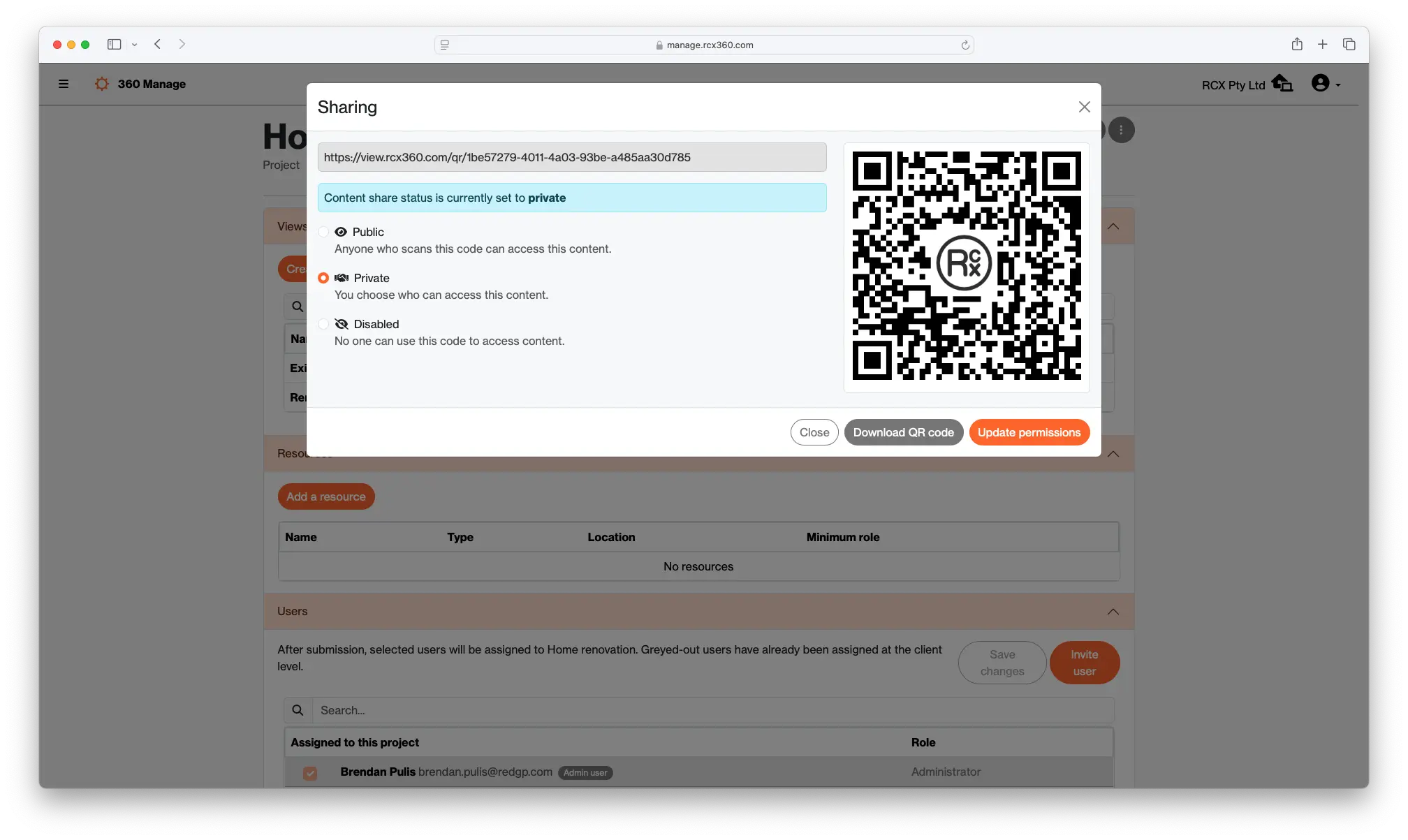
To access these QR codes, navigate to the project or view you wish to share. While editing this project or view, in the top-right corner of the editor is a share button. Click this to bring up the share window. From there, it is possible to download the QR code as an image or update the share status of the project or view.
The following statuses can be applied:
- Public: anyone who scans the QR code will be able to see the project or view.
- Private: only users who have been assigned will be able to see the project or view. If someone scans the QR code while they are not signed in, they will be prompted to sign in and verify that they are assigned to the project or its client.
- Disabled: no one can access this project or view.
QR codes can downloaded from this window by clicking "Download QR Code". The downloaded QR code will be in PNG format and named after the project or view it represents.
Related Articles
Views
This is where 360 content is uploaded to, and what users will see in 360 View. A view consists of the following: A name A collection of tags A 360° image with a defined starting location Creating a new view Views must be created while editing an ...Flat images
In addition to 360 content, the RCX 360 ecosystem allows you to upload standard images to a project. A flat image consists of the following: A name A collection of tags An image Creating a new flat image Flat images must be created while editing an ...Projects
Projects are the main way to organise and distribute your 360° content to audiences. You can create a project and set a name, address and assign them to a client Projects can be edited by selecting it in the "Projects" list. From there, click the ...